Steal The Show Controls
Desktop, phone, and tablet — same loop, different thumbs.
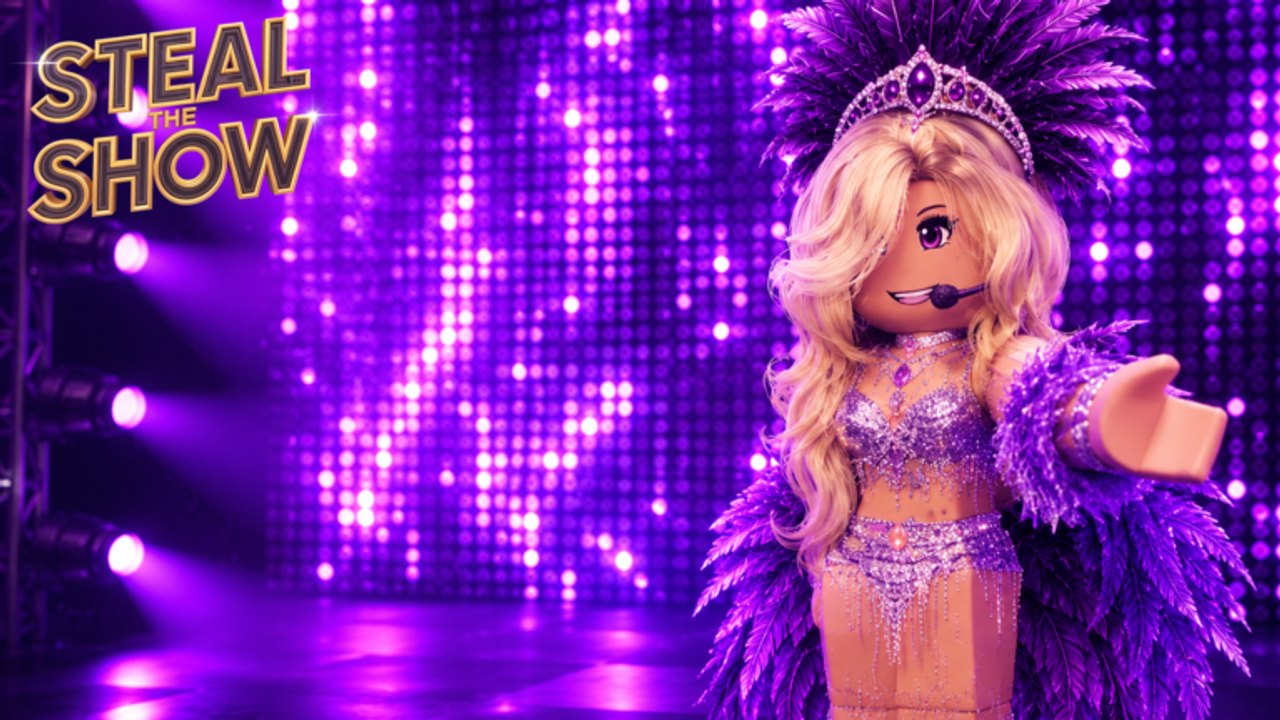
Steal The Show lists desktop, mobile, and tablet support on the official Roblox page. The loop does not change: song, outfit, stage, perform, vote. The hands that run the loop do change. This page is the device guide so you do not lose a spotlight to a missed tap.
Read How to Play for the rules. Use this page when the rules are clear and the UI is not.
Desktop
On a computer you have the easiest camera and the fastest menus.
- Move with standard Roblox WASD and jump. Keep movement on the beat during How to Perform.
- Use the mouse to orbit the camera so judges see your face, not your back accessory.
- Open song, outfit, and stage tools before the turn timer gets short. Desktop speed is an advantage only if you spend it on rehearsal, not on shopping.
- Click vote UI on purpose. A misclick mid-song can lock a score you did not mean — see How to Vote.
If a menu covers the stage, close it before the hook. A covered open looks like AFK even when you are configuring lights.
Mobile
Phones are first-class here, and they are also where most fumbles happen.
- Move with the left stick. Practice one path you can run without looking down.
- Pinch or drag camera early, then leave it. Do not reframe during the chorus.
- Open the emote or action menu between songs, not on the first beat.
- Vote with a deliberate tap after the hold. The score control can sit near jump or camera gestures.
- Simplify stage effects if the frame rate drops. Your judges may be on phones too.
When the outfit editor feels cramped, change the largest clothing piece and lock it. The outfit guide prefers a finished simple look over a half-applied layered one.
Tablet
Tablet sits between the two. You get more screen for lights and less precision than a mouse. Rest the device so both thumbs are free. Landscape usually makes the stadium easier to read. If the UI scales large, hide extra panels before you perform.
Shared habits that prevent losses
- Finish song choice first. Menus closed, track locked.
- Finish outfit second. Confirm you are not in a default shirt.
- Finish lights third. Trigger the opening look once in rehearsal if the tools allow it.
- Then perform. No extra panels.
- Then vote the other seven with the same attention you wanted.
The performance checklist is this list in checkbox form. The outfit planner is the clothing pass.
Beta input bugs
Open beta means a button can ignore a tap, a camera can snap, or an avatar can freeze a pose. Do not smash the same control ten times — you will queue ten emotes for the next bar. Wait a beat, try once more, then continue the act with movement you still have. Log the issue mentally and check weekly updates after the lobby.
If a control issue looks like an exploit seller’s “fix,” ignore it. Script safety exists because broken inputs are a common excuse for malware pastes.
Accessibility notes
You can play this showdown without perfect rhythm. Choose a slower song from the song tier list, reduce effects, and hold a strong pose on the close. Judges can star a committed still act more easily than a motion-sick one.
If color is hard to separate, lean on silhouette and motion, not on a five-color wash. Stage design can stay high-contrast with one spotlight and one dim house look.
Controls are not the show. They are the reason the show starts on time. Set them up, then go win the stars with How to Win.
Frequently Asked Questions
Quick answers for the current Steal The Show beta.
Does Steal The Show support mobile?
Yes. The official page lists desktop, mobile, and tablet. The loop is the same; the menus need more care on a phone.
Why did my emote fire late?
The menu probably ate the first beat. Open actions between songs, not on the hook.
What should I do if a button fails in beta?
Wait one beat and try once. Do not queue repeats. Check weekly updates after the round.
Guides Overview
Steal The Show Roblox guides for how to play, perform, dress, light the stage, vote, and win eight-player rounds.
How to Play
Learn the Roblox Steal The Show loop: eight players, song, outfit, stage design, live performance, and star votes.
How to Perform
Steal The Show performance tips: song timing, movement, stage presence, and how to hold stars for a full Roblox act.
Build Outfit
Steal The Show outfit guide for Roblox: readable silhouettes, song-matching looks, and stage-friendly fashion.
Design Stage
Steal The Show stage design guide: lights, effects, and visuals that make a Roblox performance readable from the seats.
How to Vote
Steal The Show voting guide: how star scores work, how to judge fairly, and how votes shape the Roblox music round.